
Digital photos are an excellent way of preserving and reliving your memories. You can access these precious memories on your smartphone or computer.
But often, this experience can be disturbed if your digital photos become unreadable, damaged, appear blank, or pixelated. They might be damaged or corrupted. This could be due to a system crashing unexpectedly, power loss, incomplete file transfer, or human error.
In this blog, we’ll learn how photos get corrupted, how to fix them, and some tips to prevent photo corruption.
So, Why Do Photos Get Corrupt?
From incomplete photo transfer to incompatible photo viewing apps, there could be various reasons for photo corruption. Improper system shutdown or accumulation of bad sectors on storage media can corrupt your photos. Here are some common reasons for photo corruption:
- The File system is corrupt: If your system crashes down unexpectedly or loses power while saving, transferring, editing, or copying the photos, it may corrupt the file system.
- Bad sectors on the storage media: Over time, bad sectors accumulate on the storage media, making the photos inaccessible.
- Improper Handlingincludes removing the external drive, such as an SD card or flash drive while transferring photo files to a computer.
- An interruption in data transmission: If the photo-transferring process is interrupted, your photos may either be deleted or corrupted.
- Silent data corruption: Silent data corruption, also known as undetected data corruption, occurs during the read/write operations.
- Incompatible photo file format: This occurs when the photo file format is not supported by the photo viewer app or when you use an outdated version of the photo viewer app.
- Virus Attack: Virus or malware attacks render your photos unreadable.
How Does A Corrupt Photo File Look?
A corrupted photo file may become unreadable, show errors, and not open in any photo viewer app. Photos not opening properly are also signs of corruption. Blank images, no sound, unusual file sizes, incomplete, fragmented, or pixelated images, etc., indicate photo corruption.
How to Fix Corrupted Photos?
You can fix the corrupted photos by using various methods that include:
- Use CHKDSK command.
- Get professional Photo Repair software.
We recommend using a professional photo repair software like Stellar Repair for Photo, a secure and safe way to fix corrupt photos without affecting the original image quality.
Method 1: Use CHKDSK Command
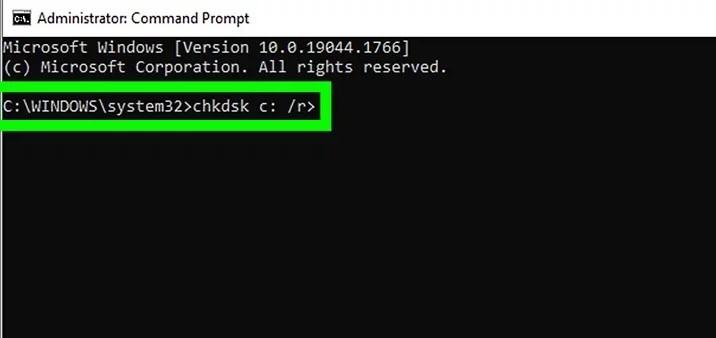
Bad sectors on the storage media can often make your images inaccessible; try running the CHKDSK command. It can help in fixing the bad sectors; follow the below steps to know how to do it:
- Press the Windows+ R keys together to open the Run
- Type cd.exeand click Enter to open Command Prompt.
- Type chkdsk (drive letter): /rin the command window.
- The process will take time to check for errors and repair them.
After completing the scan, restart your system and check if the images are opening.
Method 2: Repair Corrupt Photos With Stellar Repair for Photo
Stellar Repair for Photos is the best tool for repairing corrupt or damaged photos. This advanced tool can fix corruption in the image file header and data, unknown or invalid markers, and invalid image file structure.
The software can repair photos captured from smartphones and cameras, including DSLRs, SLRs, camcorders, etc., from Nikon, Sony, Canon, and others. It can simultaneously repair multiple photos of the same or different file formats, such as PNG, JPEG, TIFF, HEIC, DNG, and RAW.
Stellar Repair for Photo lets you preview the repaired images before saving them. This tool uses sample files to repair severely corrupt images and provides thumbnails for images that are severely corrupt beyond repair.
Steps to repair corrupt photos using Stellar Repair for Photo:
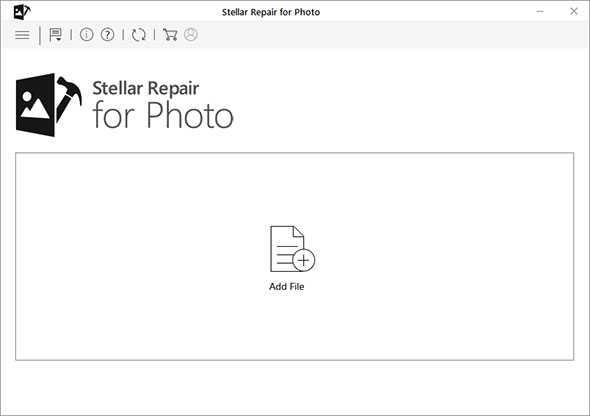
- Download and install the Stellar Repair for Photo software on your Windows and Mac. Once installed, launch the software and click on the ‘Add File’ icon to insert corrupted photo files.
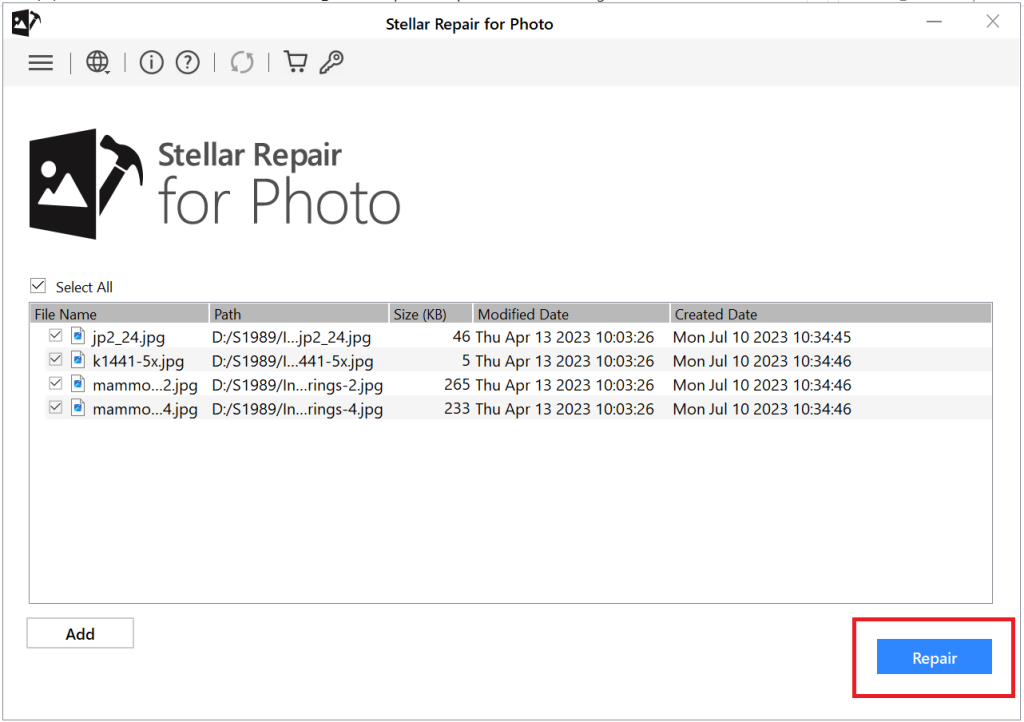
- Once you finish adding corrupted images, click the ‘Repair’ button to start the repair process.
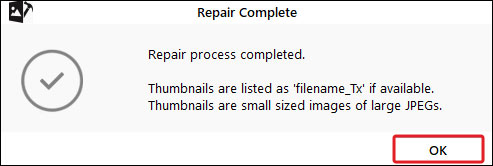
- Once the repair process is completed, you can see the prompt saying, ‘Repair process completed.’ Click OK.
- Next, select the photos you want to Preview to see how the repaired image files look.
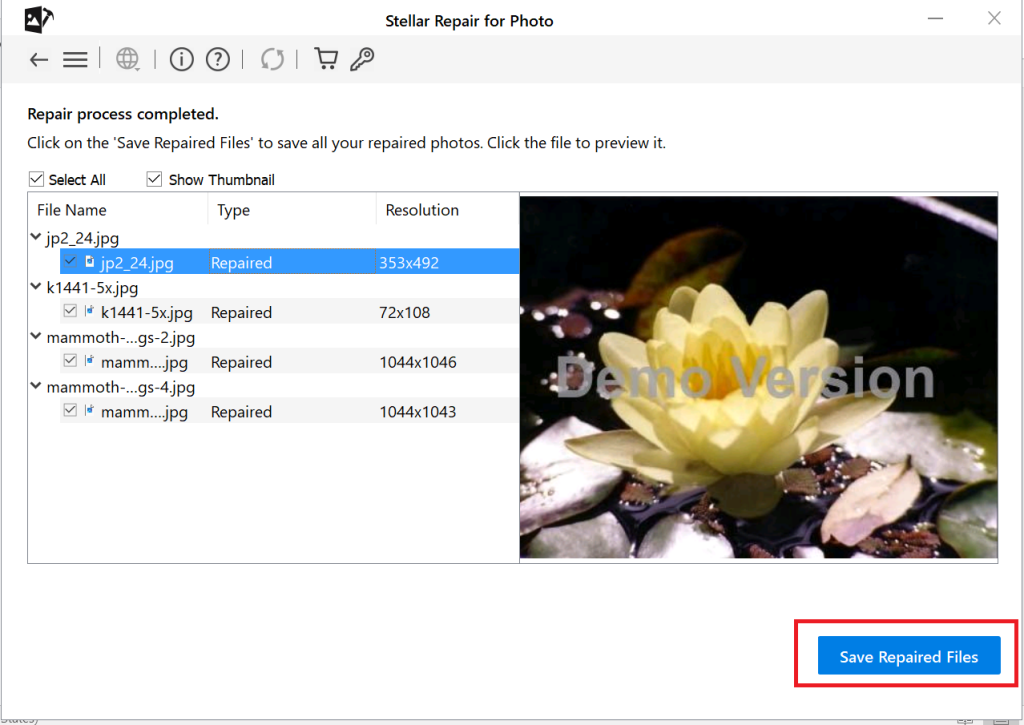
- Once you are satisfied with the repair result, click Save Repaired Files and browse the location to save the repaired photos to a desired destination.
Tips to Prevent Photos from Being Corrupted
Follow the tips below to prevent photos from becoming corrupted in the future:
- Ensure you have installed trusted antivirus software and regularly update it.
- Carefully insert/eject external drives, such as SD cards, pen drives, and USB drives, from the computer.
- Always save a copy of the original photo file and work on the copy of the original file.
- Make sure the photo transfer between devices is not interrupted.
- Back up your photos at multiple locations.
- Keep the laptop or camera battery fully charged while working or capturing photos.
- Only use trustworthy photo viewing or editing applications to open images.
- Avoid changing the format or headers of images manually.
Wrapping Up
Photos are a great way to relive fond memories. However, photo corruption can be frustrating when it results in the loss of precious memories.
You can fix corrupted photos by following the abovementioned methods: using professional photo repair software or the CHKDSK command.
Moreover, always remember to create a backup of your photos before attempting any repair method.